Gratuitease

Cashless tipping guide

How to tip without cash: practical options after service.

If you want to leave a tip but do not have cash, first check which cashless options the worker or business accepts. A card terminal, tipping link, payment app, or nearby-discovery app may work. The useful choice is the one that reaches the intended recipient with clear fees and confirmation.

Updated

01

Start with the business’s accepted tipping options

Ask whether a gratuity can be added to the service payment or whether there is a separate approved tipping method. At a restaurant or salon, the existing checkout may already include a tip. At a hotel, event, or car wash, a separate worker or team flow may be available.

Check your bill for a tip you already added or a service charge you want explained. Do not assume every charge is distributed as a gratuity; ask the business how it is handled before deciding whether to add another tip.
02

Choose an option you and the recipient can use

Each method has a different setup. The presence of a QR code, wallet, or payment app does not guarantee that it reaches a particular worker. Verify the recipient and use a method the worker or business accepts.

  • Card checkout: ask whether a gratuity can be added to the bill.
  • QR code or tipping link: confirm the worker or team shown on the page.
  • Payment username: verify the exact account with the recipient.
  • Tipping app: check app availability, permissions, and accepted payment methods.

03

Use nearby discovery when the worker participates

In Gratuitease, open the app, allow the requested permissions, and look for the eligible nearby worker. Check their name and photo, choose an amount, and review the fees and total before authorization. Being nearby does not replace confirming who provided your service.

Customers authorize with Apple Pay on iPhone or Google Pay on supported Android devices. Gratuitease card-funded tips require a Stripe-verified credit card; debit and prepaid cards are not accepted. Current payment and fee details are available in the support guide linked below.

Illustrative app screens; no payment is made.

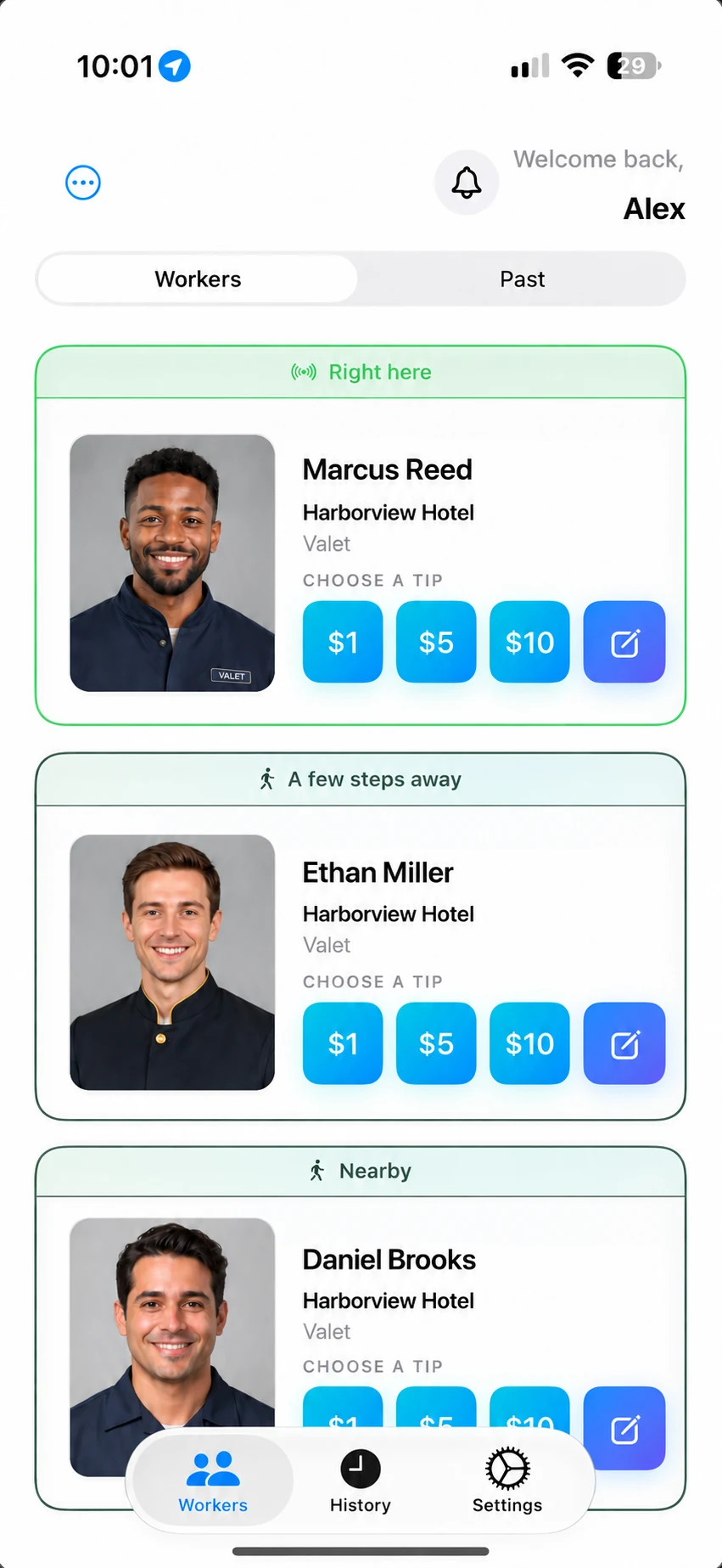
Example nearby list showing Marcus Reed with tip amount choices.
Example nearby list: recognize the person who helped you and choose a tip.
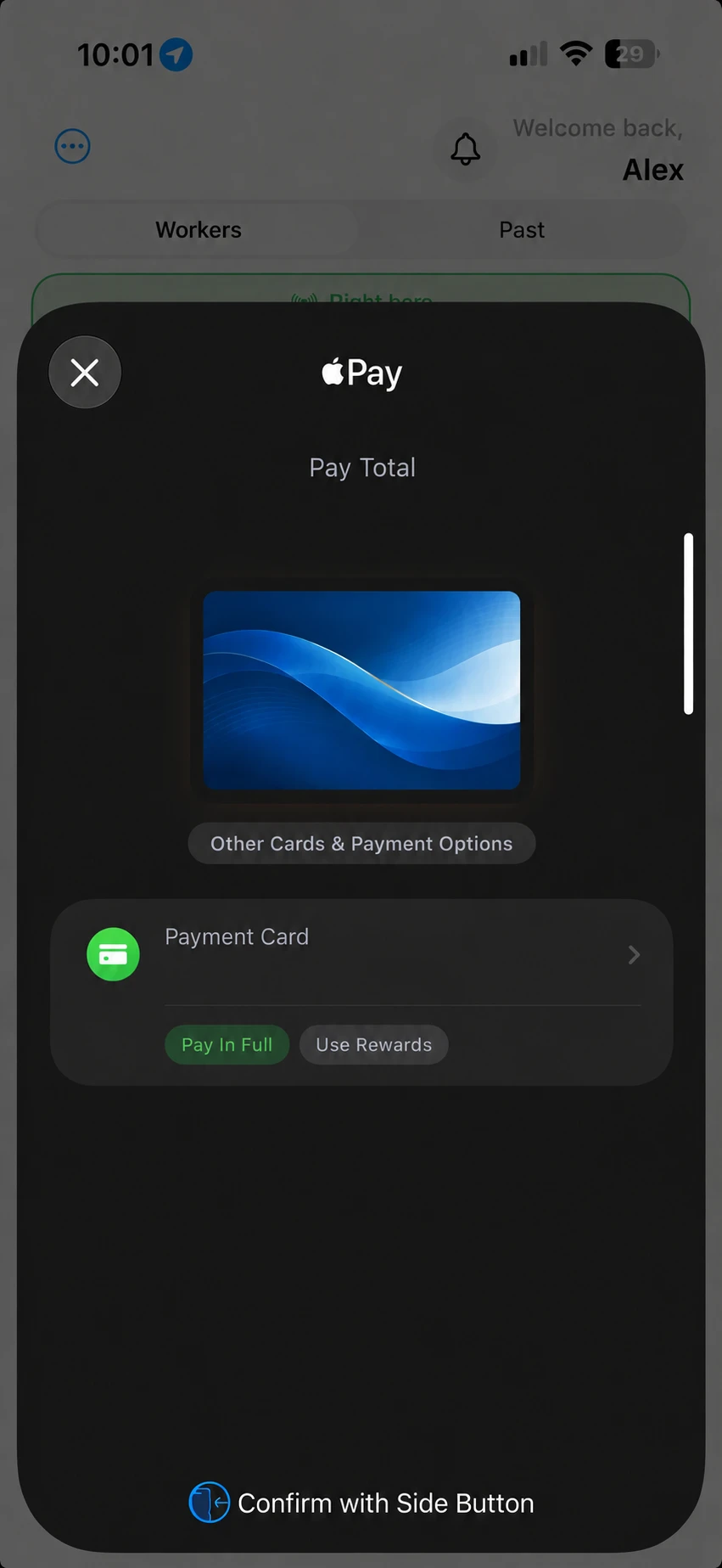
Apple Pay illustration: review the tip, platform fee and total before confirming.
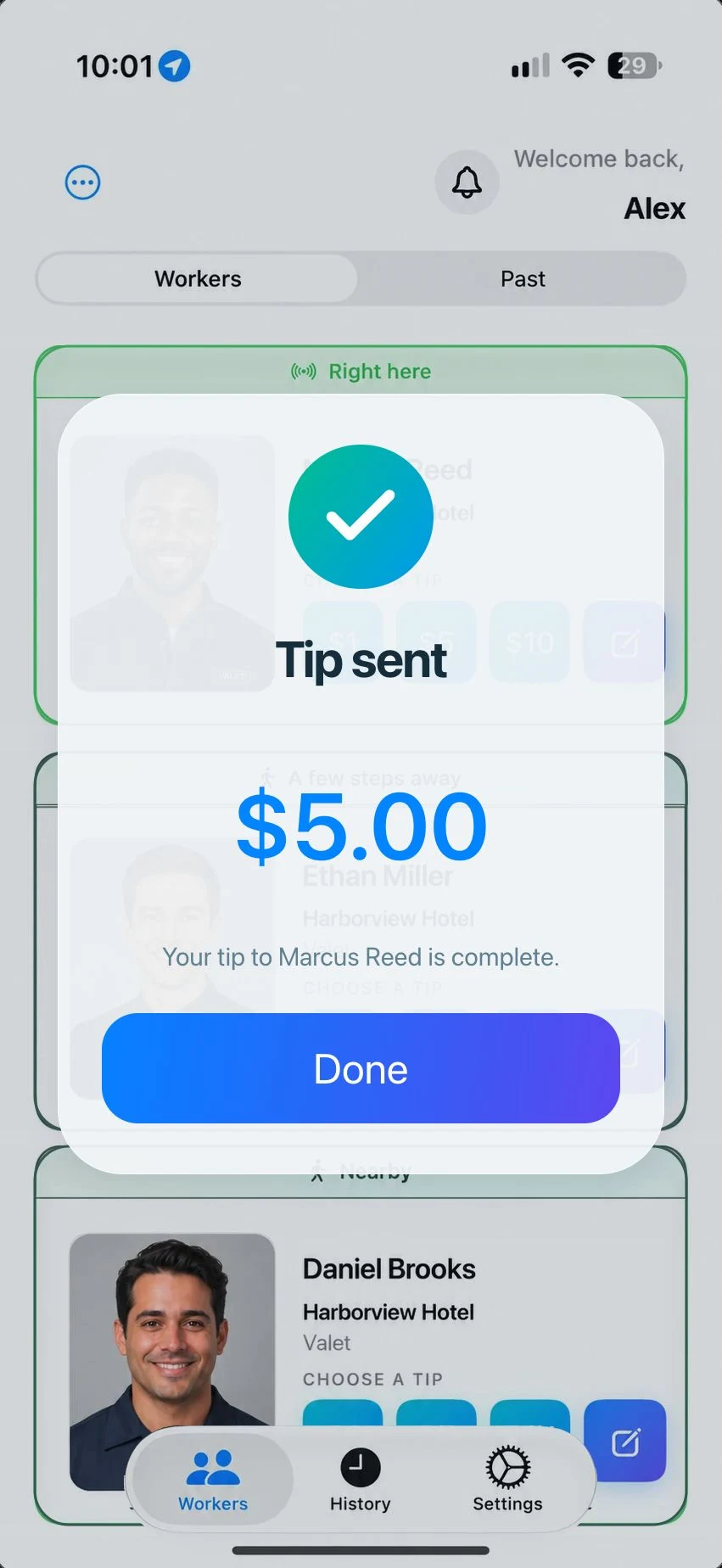
Example Tip sent screen showing a completed $5 tip to Marcus Reed.
Example completion message for a $5 tip to Marcus Reed. Check the payment confirmation before treating a tip as complete.

04

If the worker does not appear

Check the requested Bluetooth and location permissions. The worker needs an active earning session and an appropriate discovery mode. With free phone mode, the worker unlocks the phone with Gratuitease open when you are ready to tip. An optional wearable supports discovery with their phone put away after the session starts.

If you still cannot identify the recipient, ask the worker or business for help or another accepted tipping method. Avoid guessing a similar name or sending a tip to an unrelated nearby person.

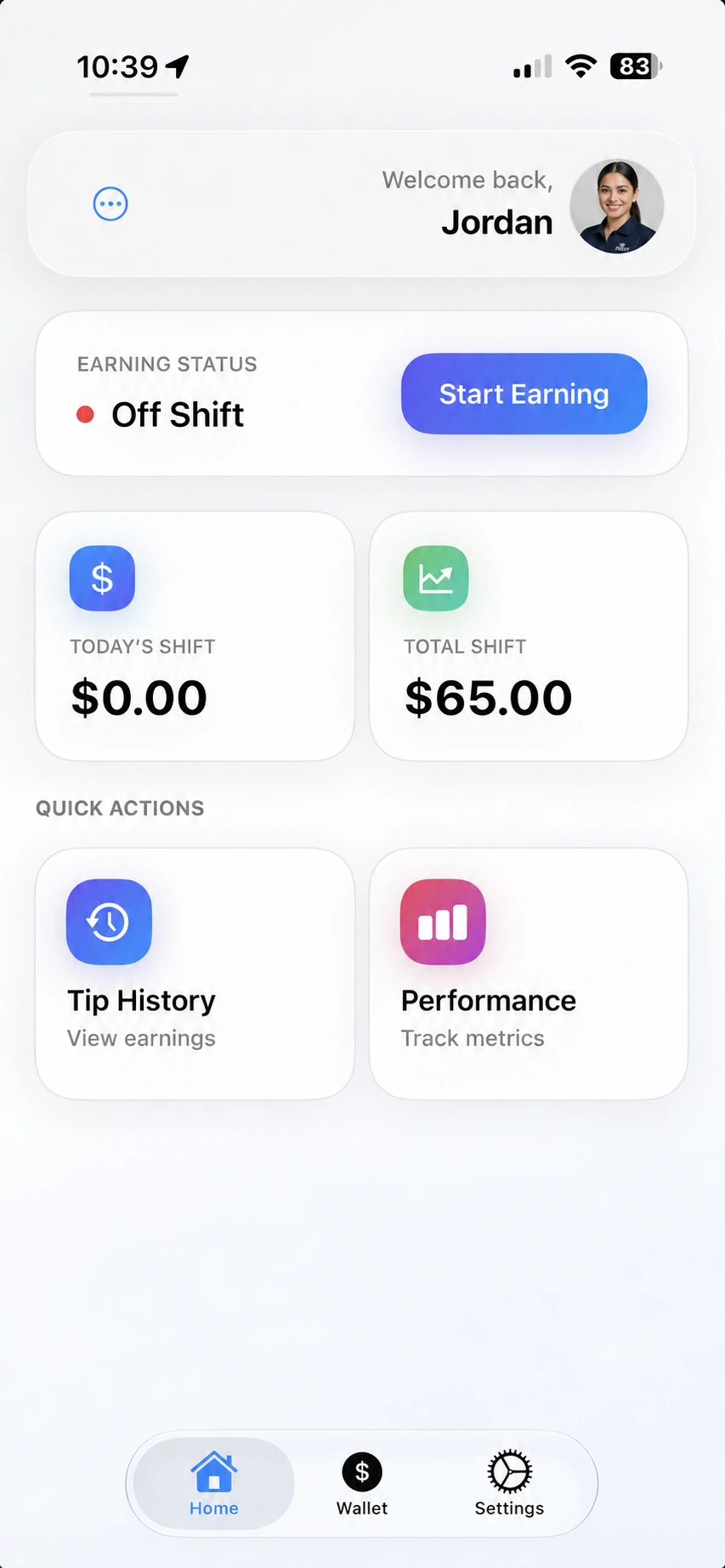
Example Gratuitease worker dashboard showing Off Shift and a Start Earning button.
Example worker dashboard showing Off Shift and the Start Earning button. The worker needs to start an earning session to become discoverable.

05

If you have no internet connection

Bluetooth discovery and tip scheduling in Gratuitease can work without Wi-Fi or cellular service. The app saves the pending tip locally; this is not a completed payment.

When connectivity returns, open the pending tip, review it, and authorize payment. Check the resulting status before trying again so you do not accidentally repeat a tip you have already completed.

06

When no accepted cashless option is available

Ask whether the business offers a way to leave a gratuity later. If it does, keep the official instructions and enough service details to identify the intended worker or team. Do not assume a personal payment service or a tipping app is accepted by every service professional.